Room recipe · the room nobody owns
BYOD meeting room audio: imposing order on the room nobody owns
A BYOD room is a table, a screen, possibly a cable, and no opinion about who carries the audio. So six people walk in and form six opinions, all of them the same one: join the way I join from my desk. That is a room engineered, accidentally, to echo — and it's the most common meeting room in most companies.
Scope, minuted
By "BYOD room" we mean a shared space with no room-system software — no Zoom Rooms or Teams Rooms appliance deciding anything. There may be a screen, a cable, a USB device on the table. What there isn't is a device whose job is to be the room. If your room does run a room system, you want the Zoom Rooms or Teams Rooms settings pages instead.
Why this room type is the worst offender
Every other room type has a default. A room system room has an obvious anchor sitting at the end of the table with a light on it. A huddle room usually has so few people that the layout is self-evident. The BYOD room has neither — it has a vacancy, and vacancies get filled by habit.
Zoom's own echo documentation lists "multiple computers with active audio in the same conference room" among its primary causes, with the fix given as disconnecting computer audio from the other devices. Read that as a description of a BYOD room's default state and you understand the whole problem: the documented failure mode is the room's out-of-the-box configuration. Nobody made a mistake. Nobody was careless. The room simply never told anyone what to do, so everyone did the reasonable desk thing, and the reasonable desk thing is catastrophic in company.
It compounds, too. Three live laptops don't make three times the trouble of one — they make a mesh, where every speaker feeds every other microphone, and no single device's echo cancellation can see enough of the picture to subtract anything. As we work through on the room echo page, acoustic echo cancellation is a per-device promise: it compares what this device played against what this device heard. It has no idea your colleague's laptop exists.
Three laptops live on audio
One anchor, the rest audio off
Step one: nominate an anchor anyway
The fix is to supply the missing default. Somebody decides, in advance, which device is the room — and in a BYOD room that decision has a clear tie-breaker:
- If something is attached to the room, the laptop attached to it anchors. A USB audio device on the table or built into the screen exists to serve the room; the machine plugged into it inherits that job. This is the easiest anchor decision there is, and it is the one most often wasted — see the next point.
- Make sure the anchor actually selected the room's device. Plugging in is not choosing. A laptop connected to room audio will frequently keep using its own built-in microphone until someone opens the meeting app's audio settings and picks the room device explicitly — which is why rooms with perfectly good attached audio still sound like somebody's keyboard. Check the selection at the start of the meeting, every time, on the anchor only.
- If nothing is attached, nominate a laptop mid-table. Not the presenter's, not the organizer's — someone who is attending rather than running things, whose machine can sit still and be ignored. The full reasoning is on the Join Map, and the small-room specifics are in one laptop, whole room.
- Everyone else joins with audio off. Disconnected, not muted — a muted laptop's speaker keeps playing the meeting into the room for the anchor's microphone to collect. Screen, chat and reactions all still work.
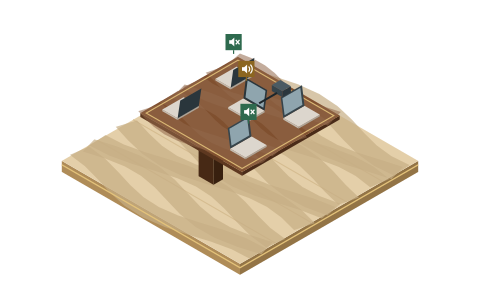
A healthy BYOD room: one anchor, five hollow seats. Every hollow seat still has slides, chat and reactions — it has simply closed its audio path.
Step two: let the platforms catch what people forget
Two documented behaviors do part of this work automatically, and a BYOD room should have both working for it:
- Zoom's ultrasonic proximity detection. Zoom documents that its desktop client uses ultrasonic sound to detect proximity to a Zoom Room or another device already joined into the meeting, and on detection automatically disables that laptop's computer audio — speaker and microphone both. Note the second half of Zoom's phrasing: it can key off another joined device, not only a full room system, which is the part that matters in a room with no appliance. It rides on the Automatic direct sharing using ultrasonic proximity signal option and needs current software.
- Teams' second-device silencing. Microsoft documents that joining a meeting you're already in from another device causes Teams to automatically turn off that second device's speaker, camera and mic before it enters, to prevent an echo effect. Microsoft's guidance on the Audio off join option is almost a statement of the anchor rule: choose it when there's already an active mic and speaker in the same room as you.
Neither automation closes the whole gap, and the gap is identical in both: a person joining the meeting for the first time, from inside the room, with audio on. In a BYOD room — where half the attendees may be joining fresh rather than moving from their desk — that gap is wide. Which brings us to the part that actually decides whether a BYOD room works.
Step three: put the rule in the room, not in the people
Every BYOD room we've seen behave itself has had one thing in common, and it wasn't equipment. It was a visible instruction. The room's rule has to survive three populations who will never read your internal documentation: new starters, contractors, and visitors from another company sitting at your table for the first time.
- A card on the table. Dated, laminated if you're feeling institutional: "Room audio: the laptop plugged into the table cable. Everyone else — join with audio OFF, not muted." This single index card outperforms every wiki page ever written on the subject, because it is in the room at the moment of the decision.
- A line in the invite. Above the join link, where it's the last thing read before clicking. The Join Map has copy-paste lines per room type.
- One person who says it out loud. Rooms that work have someone who says "anyone else joined with audio?" in the first ten seconds. It takes four seconds and prevents the entire meeting's worth of wincing. That person — the one mid-table who notices the loop forming — is who this site is written for and named after.
The BYOD failure we can't fix for you
Honesty item, minuted: some BYOD rooms are rooms in name only. A corner of an open-plan floor with a screen bolted to a pillar is a booking-system fiction, and no join layout rescues it, because the noise arriving at the anchor's microphone is the entire floor. Processing will shave the edges off that and make the room sound managed rather than quiet, which is worth something but isn't a solution. The real answer is a door, and doors are a facilities conversation — buildings and gear are deliberately off MidTable's lane, so we'll say the true thing and stop rather than sell you a menu that won't help.
The same applies to a room whose attached audio device has simply died. If the anchor sounds broken regardless of settings and regardless of which machine anchors, you've left our territory and entered your organization's replacement process. We don't review or recommend hardware; we'll just tell you plainly that you've reached the edge of what settings can do.
Where to go next
- If the symptom is specifically echo, work the triage order on conference room echo.
- If remote people describe the table as faint, thin or cutting out, that's a different diagnosis — see remote can't hear the room.
- For the whole failure map in both directions, start at hybrid meeting audio.
- Before recurring meetings, run the sixty-second room check — it's built for exactly this room type.
Asked in rooms nobody owns
Why is BYOD the echo-prone room type?
Because it has no default anchor, so everyone joins as they would at their desk — which is precisely the configuration Zoom documents as a primary echo cause. The room's factory setting is the failure mode; someone has to supply the missing decision.
We have a USB audio device on the table. Why does it still sound like a keyboard?
Almost certainly because the anchor laptop never selected it. Plugging in doesn't change the app's chosen input; the meeting app may happily keep using the laptop's built-in microphone. Open the anchor's audio settings and pick the room device explicitly — then check it again next week, because updates and docking reshuffle selections.
How do we make guests follow the rule?
Stop relying on knowledge and use the room. A dated card on the table naming the anchor and saying "everyone else joins with audio off" reaches visitors, contractors and first-timers, none of whom will ever see your wiki.
Is it enough if everyone just mutes?
No — that's the single most expensive misunderstanding in hybrid meetings. Mute closes a microphone and leaves the speaker playing the meeting into the room, where the anchor's mic collects it. Extra devices must leave computer audio, not mute it.
Should we install noise-cancellation software on every laptop in the room?
No. Only the anchor is carrying the room's audio, so only the anchor benefits; the others have closed audio paths and nothing to process. Cleanup software on five silent laptops is five subscriptions doing nothing.
Verification note: Zoom's documented echo causes and ultrasonic proximity-detection behavior, and Microsoft's second-device join silencing and Audio off option, were read on the vendors' official support pages on 20 September 2026. Krisp's pricing and free-plan status were checked on krisp.ai and its help center the same day. The device-selection and mesh-echo explanations above are standard audio-engineering reasoning, offered as such — MidTable runs no measurement lab.