Settings desk · room systems
Teams Rooms audio: defaults, DSPs, and the Windows/Android split
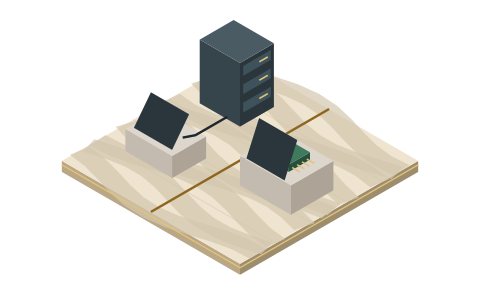
The most useful thing to know about Microsoft Teams Rooms audio is how little of it is a menu. On Windows rooms, Microsoft's noise suppression is on by default and echo cancellation silently changes owners when professional audio equipment is present. On Android rooms, the manufacturer's firmware runs the show. Knowing which layer is in charge is the setting.
Scope, minuted
This page is about Microsoft Teams Rooms — the room-system product on the appliance at the end of the table. The Teams app on anyone's laptop has its own audio settings and its own corners of the internet; we don't cover it. And this is a per-room understanding, not an enterprise rollout guide — fleet policy, provisioning and admin-center governance are an IT-deployment discipline we deliberately leave to IT-deployment people.
The split that explains everything: Windows vs Android
"Teams Rooms" is one brand covering two very different audio architectures, and diagnosing a room starts with knowing which one you're standing in:
| Teams Rooms on Windows | Teams Rooms on Android | |
|---|---|---|
| Noise suppression | Microsoft-developed, on by default, "combined with microphone manufacturer processing capabilities" (Microsoft's wording) | Handled by the device manufacturer and the device firmware; Microsoft states the Teams Rooms on Android app does not currently perform Teams-client-based noise suppression |
| Echo cancellation | Service-side AEC by default; hands off entirely to a certified DSP when one is connected | Manufacturer/firmware territory |
| Where you adjust things | Microsoft layer + whatever the mic vendor exposes | The OEM's own settings; "audio-processing behavior and available controls can vary by certified OEM device, firmware, and room system configuration" (Microsoft's wording) |
| Practical upshot | Complaints about suppression behavior are usually addressable in software layers | Complaints route to the OEM's documentation for that specific device |
If remote participants complain about an Android-based room and you've been hunting through Teams menus for a suppression toggle, you've been searching the wrong company's software. Identify the OEM, then read their audio documentation for that device.
The DSP handoff — the sentence worth memorizing
From Microsoft's Teams Rooms operations documentation, quoted exactly: "When a certified digital signal processor (DSP) is connected to the Teams Rooms on Windows device, Microsoft automatically disables service side automatic echo cancellation (AEC) and relies on the DSP to handle AEC."
No DSP in the room
Certified DSP connected
From the Microsoft sentence quoted below. The fix for an echoing DSP room lives in the DSP.
Why we keep quoting it: it decides where echo problems live.
- No DSP in the room (most small and mid rooms): echo cancellation is Microsoft's job. Your levers are the join layout — one open audio path, see conference room echo — speaker volume, and defaults you mostly shouldn't fight.
- Certified DSP in the room (integrator-built boardrooms): Microsoft's AEC has deliberately stepped aside. If that room echoes, the configuration that matters is inside the DSP, which is your AV integrator's territory. We won't pretend to run that console from here — but knowing the handoff exists saves you a week of blaming the wrong layer, and gives you the precise sentence to put in the ticket.
This is the room-system version of a principle that runs through all audio processing: two echo cancellers fighting over one signal are worse than either alone. Microsoft disabling its own AEC in DSP rooms is them enforcing that principle; you enforce your half by not stacking processing layers casually anywhere else either.
The room's defense against visiting laptops
A Teams Room's echo risk usually walks in the door carrying a laptop. Two documented Teams behaviors are the countermeasures — free, and worth teaching to everyone who books the room:
- Second-device joins arrive silenced. Microsoft documents that when you join a meeting you're already in from another device, Teams automatically turns off the second device's speaker, camera and mic before it enters — explicitly "to prevent an echo effect." So the person already joined at their desk who walks into the room and opens the laptop again is protected by default.
- The Audio off join option. At the join screen, Teams offers Audio off, which silences both the mic and the meeting audio on that device. This is the option every laptop in a Teams Room should pick — it's the anchor rule as a button. Microsoft's own tip in its support pages matches the rule this site is built on: keep only one device's mic and speaker on in a room.
The gap between those two: a person joining the meeting for the first time from inside the room, with audio on, out of habit. No automation catches them on the Teams side — that's what a pinned join instruction in the invite is for, and the Join Map gives you copy-paste lines per room type.
What to leave alone, and what to write down
Our standing advice for Teams Rooms audio is unusually short because Microsoft has made most of it non-optional: let the defaults work, keep the room's software current, and document what your room has. Specifically, keep a dated note (in the room folder, on the wiki, taped in the credenza — anywhere) recording: Windows or Android; OEM and device model; DSP present or not. Those three facts route every future audio complaint to the correct owner in under a minute — which is most of what "managing" Teams Rooms audio at room level amounts to. For the meeting-day routine, the sixty-second room check covers the rest, and the umbrella hybrid meeting audio guide places all of this in the wider fix order.
Asked at the console
Does Teams Rooms have noise suppression?
On Windows rooms, yes — Microsoft-developed, on by default, combined with the microphone manufacturer's own processing. On Android rooms, suppression belongs to the OEM firmware; Microsoft states the Android app doesn't currently do Teams-client-based suppression. Check which architecture your room is before hunting for a toggle.
Our boardroom has an integrator-installed audio system and it echoes. Which setting fixes it?
Probably none you can reach. If a certified DSP is connected, Microsoft has automatically disabled its own echo cancellation and handed the job to the DSP — so the fix lives in the DSP configuration, which is an integrator conversation. Quote Microsoft's handoff sentence in the ticket; it shortens the conversation considerably.
How do we stop laptops in the room from causing echo?
Lean on the two documented Teams behaviors — second-device joins arrive with speaker, camera and mic off, and the join screen's Audio off option silences first-time joins — then close the remaining gap with a pinned instruction in the invite. The general loop-hunting method is on the room echo page.
Should we add extra noise-cancellation software to the Teams Rooms device itself?
No. Room appliances aren't built for third-party audio layers, and stacking a second suppression/AEC pass on a signal Microsoft (or a DSP) is already processing is the two-cancellers problem in miniature. Extra software belongs on a laptop anchor in rooms that have no room system — not on the appliance.
Verification note: the noise-suppression default, the DSP/AEC handoff, and the Android OEM-processing statements were read in Microsoft's "Teams Rooms maintenance and operations" documentation (Microsoft's page dated 5 August 2026); second-device join behavior and the Audio off option were read on Microsoft's Teams support pages. All on 20 September 2026.