Settings desk · room systems
Zoom Rooms audio settings: what to touch, what to leave alone
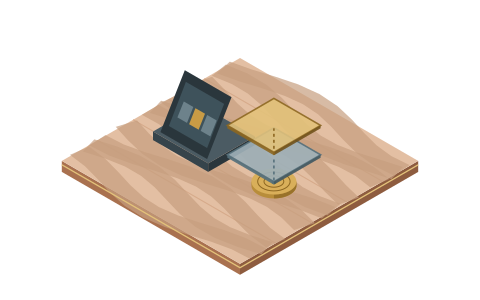
A Zoom Room makes three audio decisions worth making deliberately: how hard the noise suppression works, whether laptops entering the room get silenced automatically, and who is allowed to change either. Everything else, Zoom's processing handles quietly in the background — and part of it, usefully, can't be switched off at all.
Scope, minuted
This page covers Zoom Rooms — the room-system software that runs the appliance and controller in a shared room. The Zoom app on your own laptop has its own audio settings; that's a desk topic, not a room topic, and other corners of the internet cover it well. We stay at the room level here. This is also a per-room guide, not an org-wide rollout plan — fleet policy is an IT-deployment discipline of its own.
What runs whether you touch anything or not
Zoom Rooms manages microphone processing — echo cancellation, noise reduction and automatic gain control — as part of the room software itself. Two facts from Zoom's documentation frame every decision below:
- A basic noise-suppression layer runs continuously and, in Zoom's own words, cannot be turned off. Setting the room's control to Off removes only the advanced layer.
- The room's Noise Suppression control requires Zoom Rooms 5.13.0 or later (and the same for the controller software). If a room's controller doesn't show the control, check the version before filing a mystery.
Practical consequence: a Zoom Room is never "raw." If remote participants describe the room as watery or words as clipped, you are tuning layers, not adding them — which is why the level you choose matters.
Layer heights show order, not measured strength. Options and framing from Zoom’s documentation as quoted in the table below.
The Noise Suppression control
On the room controller: Settings → Microphone → Noise Suppression (and if the room has several microphones, you can select the specific device first). Three options:
| Option | Zoom's framing | When we'd choose it |
|---|---|---|
| Auto | The default | Almost always. Let it adapt; revisit only on a specific complaint. |
| High | For noisy environments | Rooms that genuinely earn it: adjacent construction, an open-plan wall that never closes, a kitchen behind glass. Not for ordinary rooms "just to be safe" — aggressive suppression is exactly the layer that starts shaving quiet and distant voices, the failure we unpack in remote can't hear the room. |
| Off | Disables the advanced layer (the basic layer stays) | Rarely — mostly when diagnosing whether suppression itself is eating speech, or when an external processing chain is doing the work upstream. |
Our advice runs conservative: Auto by default, High only on evidence, Off only to diagnose. And whichever you choose, write it down — the most common Zoom Rooms "regression" we see is a well-meaning attendee changing the controller mid-meeting and nobody knowing afterward what the room is supposed to say.
Proximity detection: the automatic anchor rule
The best Zoom Rooms audio feature isn't in the microphone menu at all. Zoom documents that its desktop client "uses ultrasonic sound to detect its proximity to a Zoom Room," and when a laptop joins a meeting inside a room that's already carrying audio, the client automatically disables the laptop's computer audio — speaker and microphone — to prevent echo. No dialog for the user to misread, no reliance on everyone remembering the rule.
It rides on the option named Automatic direct sharing using ultrasonic proximity signal, and it needs current room and controller software. If your organization runs Zoom Rooms and this is enabled, you have effectively automated the anchor rule — the one-open-audio-path principle every page on this site keeps returning to. If it isn't enabled, you're enforcing that rule socially instead; our Join Map and the BYOD room guide are the manual versions.
Two honest caveats. Ultrasonic detection needs the laptop's mic to actually hear the signal — a headset-wearing corner-sitter with the laptop mic disabled can slip through it. And it prevents the double-join loop specifically; it does nothing about someone dialing in by phone while also on the laptop, which remains a documented echo cause you audit by reading the participant list. The full triage order lives on the conference room echo page.
What we deliberately leave alone
- Microphone and speaker hardware choices. Which device a room should own is a purchasing question; MidTable doesn't do purchasing. Once a device exists, we care which one is selected and how it's processed.
- Org-wide policy and enrollment. Locking settings across a fleet of rooms, admin roles, provisioning — real topics, different discipline, not this site's lane.
- The desktop Zoom app's audio menu. Room topic ends where the personal device begins; the only desktop behavior we lean on is the proximity silencing above, because it's the room's defense.
Asked at the controller
Can you turn noise suppression off completely in a Zoom Room?
No. Zoom documents that a basic layer operates continuously in the background and cannot be turned off; the room's Off option removes only the advanced layer. If you need a truly raw signal, that's external-processing territory beyond room settings.
What does the High option actually do?
Zoom frames High as being for noisy environments — more aggressive suppression than the Auto default. The trade is real: the harder any suppression works, the likelier it is to shave quiet, distant or overlapping speech. Give High to rooms that earn it with actual noise, and leave calm rooms on Auto.
How does a Zoom Room stop laptops in the room causing echo?
Ultrasonic proximity detection: the desktop client hears an inaudible signal from the room system and disables the laptop's computer audio automatically. It depends on the "Automatic direct sharing using ultrasonic proximity signal" option and current software on room and controller. It won't catch a phone dial-in double-join — that audit stays manual.
The room sounded fine last month and terrible today. Which setting broke?
Statistically: none — someone changed one. Check Noise Suppression first (did a "helpful" attendee set High or Off mid-meeting?), then the selected microphone, then read the participant list for a second open audio path. Then put a dated settings note in the room so next month's version of this question answers itself.
Verification note: the Noise Suppression control (location, options, default, version requirement, always-on basic layer) and the ultrasonic proximity-detection behavior were read on Zoom's official support articles on 20 September 2026. Zoom moves these pages around; search their support portal for "noise suppression for Zoom Rooms" and "eliminating echoes with proximity detection" if links have rotted.