Standing agenda item № 1
Conference room echo: find the loop, then close it
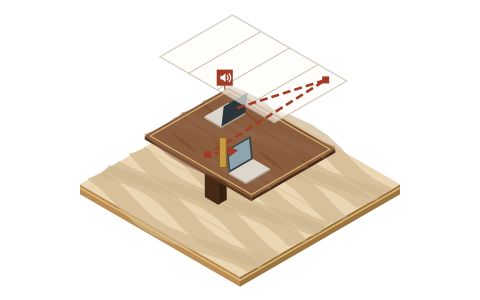
Echo in a conference room is not a mystery and it is not bad luck. It is a loop: somewhere in that room, a microphone is hearing a speaker. Find the loop, close it, and the echo ends. This page is the order we do that in — layouts and settings only, no new gear.
The twenty-second version
If the meeting has already started and people are wincing, do this before reading further:
- Count open audio paths. Every device in the room with a live mic or a live speaker is a path. There should be exactly one.
- Close the extras properly. Anyone else joined on a laptop leaves computer audio entirely — muting is not enough, because a muted laptop's speaker still plays meeting audio for the room mic to catch. Zoom's own echo guidance makes exactly this point: disconnect audio, don't just mute.
- Check for the phone double. One person joined by computer and dialed in by phone will loop all by themselves. Hang one of them up.
That sequence ends most echo incidents inside a minute. The rest of this page explains why it works, what the vendors' documentation actually says, and how to stop the same meeting from echoing again next Tuesday.
What echo in a room actually is
Echo is your own voice, or the remote side's voice, coming back delayed after making a round trip through a room. A remote participant speaks; a speaker in the room plays it; a microphone in the same room picks it up off the air and sends it back out. Add the round-trip delay of the call and the remote participant hears themselves half a second late, like a stadium announcer.
One device owns speaker and mic
It knows what it played, so it can subtract it.
Speaker on laptop A, mic on laptop B
Neither knows what the other played, so neither subtracts it.
Drawn from this page’s own explanation of echo cancellation. Bounce points are illustrative; the rule they show is not.
Two properties of this loop explain almost every confusing echo incident we've sat through:
- The room usually can't hear its own echo. The loop starts at the room's speaker and exits through the room's mic — so the delayed copy is delivered to the far end, not to the table. This is why the people in the room look baffled and the remote people look pained, and why the room's first instinct is to blame the remote side. It is almost always the room.
- Echo cancellation is a per-device promise. Every meeting platform and every room system ships acoustic echo cancellation (AEC) that compares what the speaker just played against what the mic just heard, and subtracts one from the other. It works well when one device owns both the speaker and the mic. It cannot work when the speaker belongs to one laptop and the mic to another — neither device knows what the other played, so neither can subtract it.
That second point is the whole story of hybrid-room echo. A conference room with three laptops joined on audio isn't "a bit risky" — it is a configuration that the industry's echo cancellation was never designed to survive.
The documented causes
Zoom's support article on managing audio echo in a meeting lists three primary causes, and they translate cleanly to any platform:
| Documented cause | What it looks like in the room | The close |
|---|---|---|
| "A participant has both the computer and telephone audio active" | Someone joined on the laptop for slides, then dialed in when the Wi-Fi hiccuped — and never hung up | Keep one connection; hang up the other |
| "Participants have computer or telephone speakers that are too close to each other" | Two people sitting side by side, both joined with audio "just to see the chat" | One of them leaves computer audio |
| "Multiple computers with active audio are in the same conference room" | The classic BYOD pile-up — everyone joined the call the way they would from their desk | One audio anchor; everyone else disconnects audio, not mute |
Zoom's secondary list — speakers that are simply too loud, "failed echo cancellation," a bad microphone — matters too, but in our experience it accounts for the minority of incidents. Configuration first, hardware suspicion later. (And when it truly is a broken device, that's a purchasing conversation we deliberately stay out of — MidTable doesn't review or recommend hardware.)
The anchor rule
Every fix on this site descends from one rule: a room gets exactly one open audio path — the anchor — and every other device joins deaf and dumb. The anchor might be the room system, or one laptop mid-table in a small huddle room. Everything else joins for screen, chat, and reactions only, with computer audio disconnected.
One anchor carries mic and speaker for the room. Hollow seats are joined with audio disconnected. Two filled seats = a loop waiting for the delay to make it audible.
The platforms have quietly built tooling to enforce this rule for you, and it's worth switching on:
- Zoom: ultrasonic proximity detection. Zoom documents that the desktop client "uses ultrasonic sound to detect its proximity to a Zoom Room," and when it detects one, it automatically disables the laptop's computer audio — speaker and mic both — to prevent echo. It rides on the setting named Automatic direct sharing using ultrasonic proximity signal. Details and caveats are in our Zoom Rooms audio settings walkthrough.
- Teams: second-device joins arrive silenced. Microsoft documents that when you join a meeting you're already in from another device, Teams automatically turns off the second device's speaker, camera, and mic before it enters, precisely "to prevent an echo effect," and offers an explicit Audio off option at the join screen. Room-side settings live in our Teams Rooms audio settings guide.
Deciding which device should be the anchor — the room system, the organizer's laptop, the one machine with decent processing — is a big enough question that we gave it its own framework: the Join Map. Sketch it before the meeting and the twenty-second triage above becomes unnecessary.
- 1Layout one open audio path per room
- 2Settings room-system processing, speaker volume
- 3Software a cleanup layer on a laptop anchor
From the answer below: “Layout first, settings second, software third.”
When the loop survives one open path
Sometimes you close every extra path and a faint echo persists. Now — and only now — it's a settings problem rather than a layout problem:
- Room system processing. Zoom Rooms runs a base layer of processing continuously and exposes a Noise Suppression control (Off / Auto / High) on the room controller; Teams Rooms on Windows applies Microsoft-developed noise suppression by default, and hands echo cancellation to a certified DSP when one is connected. Both of our settings guides walk the exact screens.
- Speaker volume. An anchor speaker turned up to fill a long room feeds its own mic harder than the echo canceller expects. Bring the volume down a notch before touching anything else — it's the cheapest setting in the building.
- The double-join you forgot was a join. A phone that dialed in from someone's pocket, a wall panel signed into the meeting, a second room joined down the hall with the door open. Audit the participant list, not just the table.
- Software on the anchor. If the anchor is a laptop, an audio-cleanup layer running on it can take a real bite out of residual echo and the noise that rides in with it. Krisp — the tool we point to most on this site — states that it removes "noise, echo, and cross-talk" and works at the audio level with any conferencing app, Zoom, Meet, Teams or otherwise. It processes the anchor's stream; it cannot referee a room with three open paths. Where it genuinely helps and where it doesn't, we've written up honestly in Krisp for conference rooms.
What settings cannot fix
Honesty item, minuted: some rooms echo because of the room. Bare glass on three sides, a hard table, a ceiling that bounces everything — that's reverberation, and it rides into the mic with the voice rather than looping after it. Processing can tame the edges, and seating the anchor closer to whoever speaks most helps more than any toggle. But no menu de-glasses a glass box. Physical acoustic treatment is real and it works; it is also gear-and-buildings territory, which is off our lane by design. What we can promise is narrower and useful: if your echo is a loop — and it usually is — layouts and settings will close it.
A loop: after the voice, from a speaker
Layouts and settings close it.
Reverberation: with the voice, off the glass
No menu de-glasses a glass box.
Make the fix stick
Echo that got fixed on Tuesday comes back on Thursday because the fix lived in one person's head. Move it into procedure:
- Pin the anchor decision to the meeting invite — one line: "Room audio: the Room system. Laptops join with audio off." Our Join Map page has copy-paste lines for the common room types.
- Run the sixty-second room check before recurring meetings — it catches the double-join while it's still silent.
- If your rooms run Zoom Rooms or Teams Rooms, set the room-side processing deliberately once, per our Zoom Rooms and Teams Rooms guides, so nobody "fixes" a controller mid-meeting.
- For the wider failure map — thin voices, drowned rooms, the lot — start at hybrid meeting audio, both directions.
Questions we keep getting asked
Why does our conference room echo only for remote participants?
Because the loop starts in the room: a room mic picks up the room speaker playing the remote person's voice and sends it back to them, delayed. The room never hears its own loop, so the remote side always suffers first — and the room, hearing nothing wrong, blames the remote side. We wrote a field note on that reflex.
Does muting fix conference room echo?
Only half of it. Muting kills a mic, but that laptop's speaker keeps playing meeting audio into the room for other mics to catch — Zoom's echo guidance specifically notes muting isn't sufficient when multiple computers in one room have active audio. Extra devices should disconnect computer audio entirely.
What is the fastest fix for echo in a hybrid meeting?
Count open audio paths and close all but one. One device owns mic and speaker for the room; everyone else joins with audio disconnected. In our experience that check alone ends the majority of incidents without opening a single settings menu.
Can noise cancellation software remove echo?
It can help on the one stream it processes — Krisp, for instance, states it removes noise, echo, and cross-talk — and platform echo cancellation handles the normal speaker-to-mic loop on a single device. What no software does reliably is rescue a room with several open audio paths. Layout first, settings second, software third.
Our room echoes even with just the room system joined. Now what?
Audit the participant list for a forgotten second join (a dialed-in phone, a panel, a neighboring room), drop the speaker volume a notch, then check the room system's processing settings — Zoom Rooms exposes Noise Suppression on the controller, and Teams Rooms on Windows documents its echo-cancellation behavior, including when a DSP takes over. If it persists past all that, the room itself may be the problem — see "What settings cannot fix" above.
Verification note: Zoom's echo causes, proximity-detection behavior and Zoom Rooms noise-suppression options; Microsoft's Teams Rooms audio-processing and second-device join behavior; and Krisp's pricing and free-plan status were all re-read on their official pages on 20 September 2026. If you're reading this much later, check the vendors' pages — this stuff moves.